Contact lists
Lists group the people your campaigns contact — create and rename them, tidy them up, add one to a campaign.
Your contacts are the people you've saved — from Lead search, a CSV file or Scrape competitors. Lists group them, and a campaign takes its leads from lists. A contact can be in several lists; All contacts shows everyone, in a list or not.
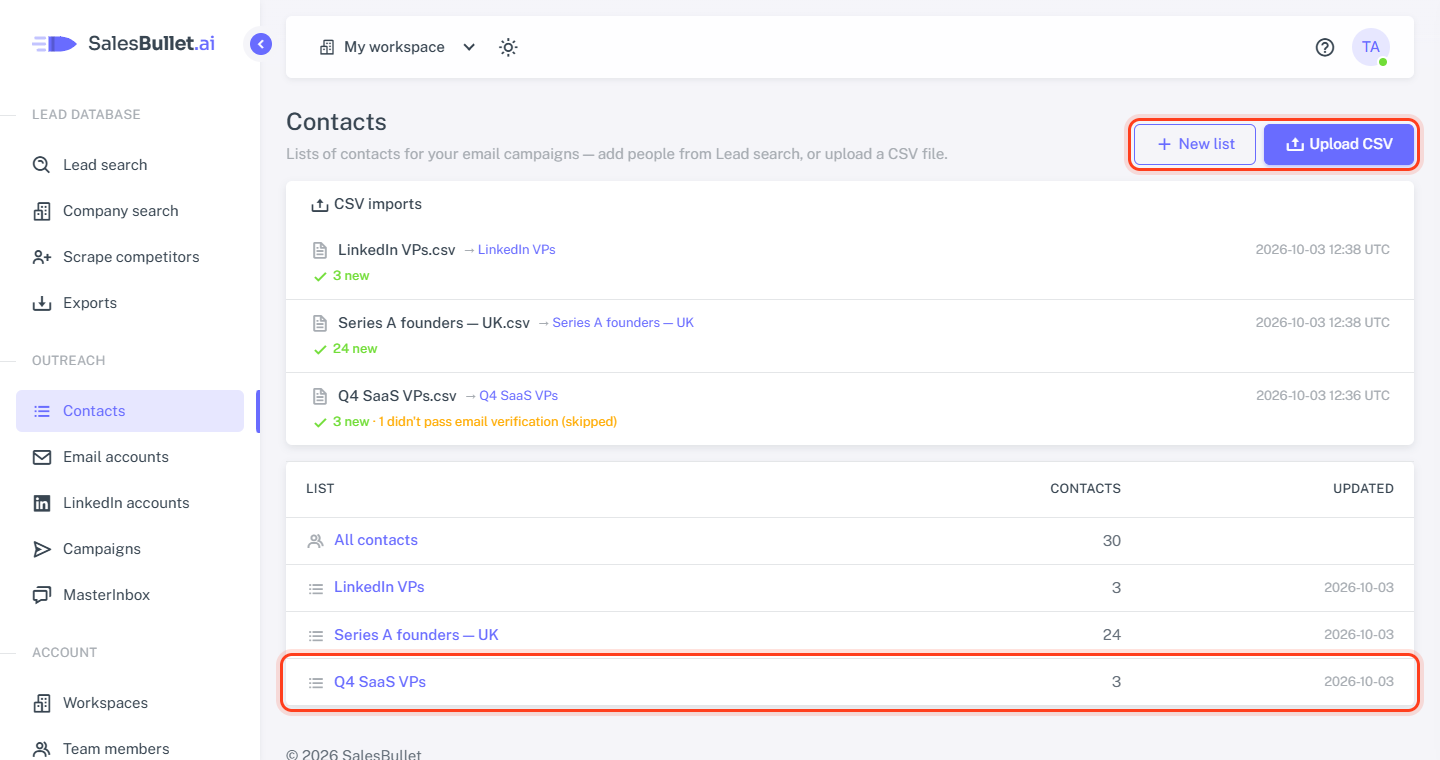
Create a list
Open Contacts, click New list, type a name and click Create. Lists are also made as you add people: + New list in Lead search's Add to contacts, or A new list when you upload a CSV file.
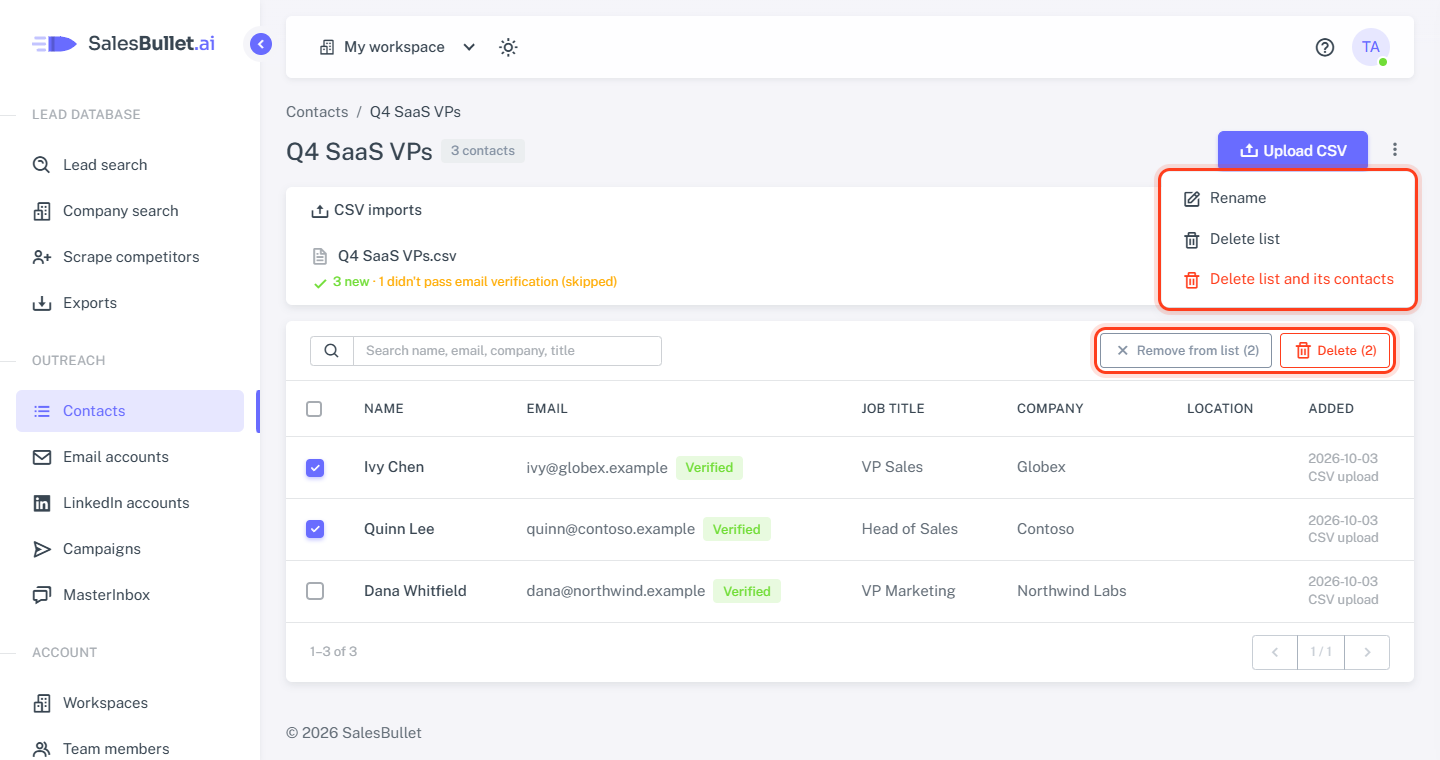
To rename a list, open it, click ⋮ and choose Rename.
What a list shows
Its contacts, newest first, 50 to a page, and a box to search names, emails, companies and titles.
- Name — an icon after it means the contact has custom fields from your file; point at it to see them.
- Email — with Verified when the email was checked in the last 2 months, or LinkedIn only for a contact without an email.
- Job title, Company with its domain, and Location.
- Added — the date, and where they came from: Lead search or CSV upload.
Remove or delete
Tick people — or the box in the header for the whole page — and click:
- Remove from list — out of this list only. They stay in your contacts, your other lists and their campaigns.
- Delete — gone for good: from every list and every campaign, with the emails and replies there.
For the whole list, click ⋮: Delete list keeps its contacts in All contacts; Delete list and its contacts deletes them too.
Warning
Deleted contacts can't be recognized as duplicates later: Skip people already in my contacts no longer knows them, so a later upload or Lead search can add them — and your campaigns email them — again. To tidy up, use Remove from list or Delete list instead.
Add a list to a campaign
- Open the campaign and its Leads tab.
- Under Add contacts from lists, tick the list.
- Click Add leads.
Skipped: people already in the campaign, people on the do-not-contact list, contacts the campaign can't reach (no email for an email campaign, no LinkedIn profile for a LinkedIn one) and, while Skip people who are active in another campaign is ticked, people active in another campaign.
The campaign takes the people in the list at that moment. Added more to the list later? Click Add leads again — the ones already in are skipped. More in Create a campaign.