Your first campaign, step by step
From an email account to a launched campaign — the five things to do, in order.
A campaign sends a sequence of messages to the people on your contact lists — emails from your email accounts, LinkedIn steps from your LinkedIn accounts, or both. Setting one up takes five steps.
1. Connect an email account
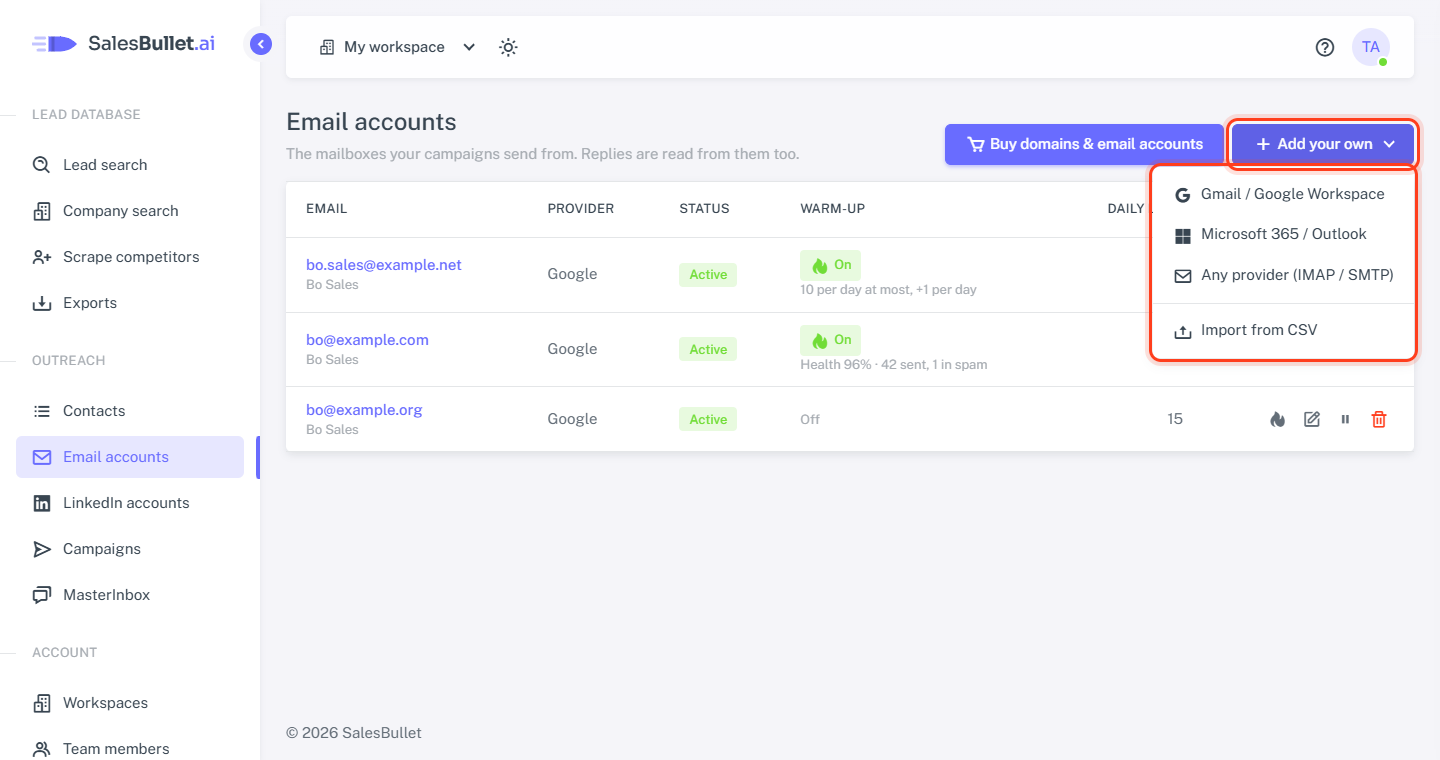
Open Email accounts and click Add your own: Gmail / Google Workspace, Microsoft 365 / Outlook, or any provider (IMAP / SMTP). Or click Buy domains & email accounts — we set them up for you, ready to send.
Tip
Send from a few accounts on domains of their own rather than from your main one, and switch on warm-up for each — more of your emails land in the inbox.
2. Find people and save them to a list
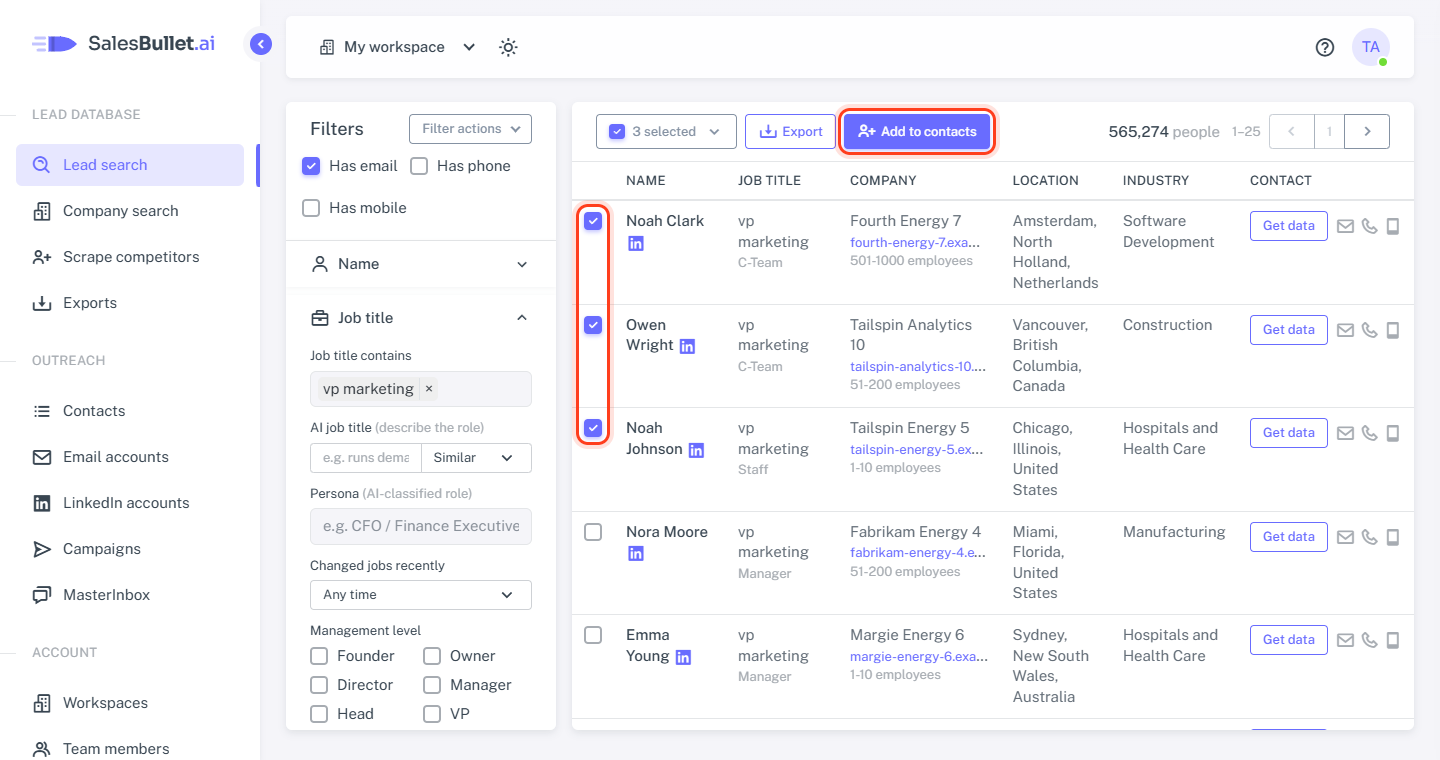
In Lead search, filter by job title, company, location and more. Tick the people you want, click Add to contacts and choose a list — or name a new one. People with a verified email go in; the others can go in for LinkedIn only.
3. Create the campaign and add your list
Open Campaigns, click New campaign, give it a name and pick its channels: Email, LinkedIn or Email + LinkedIn. Then, on the Leads tab, tick your list and click Add leads.
4. Write the sequence
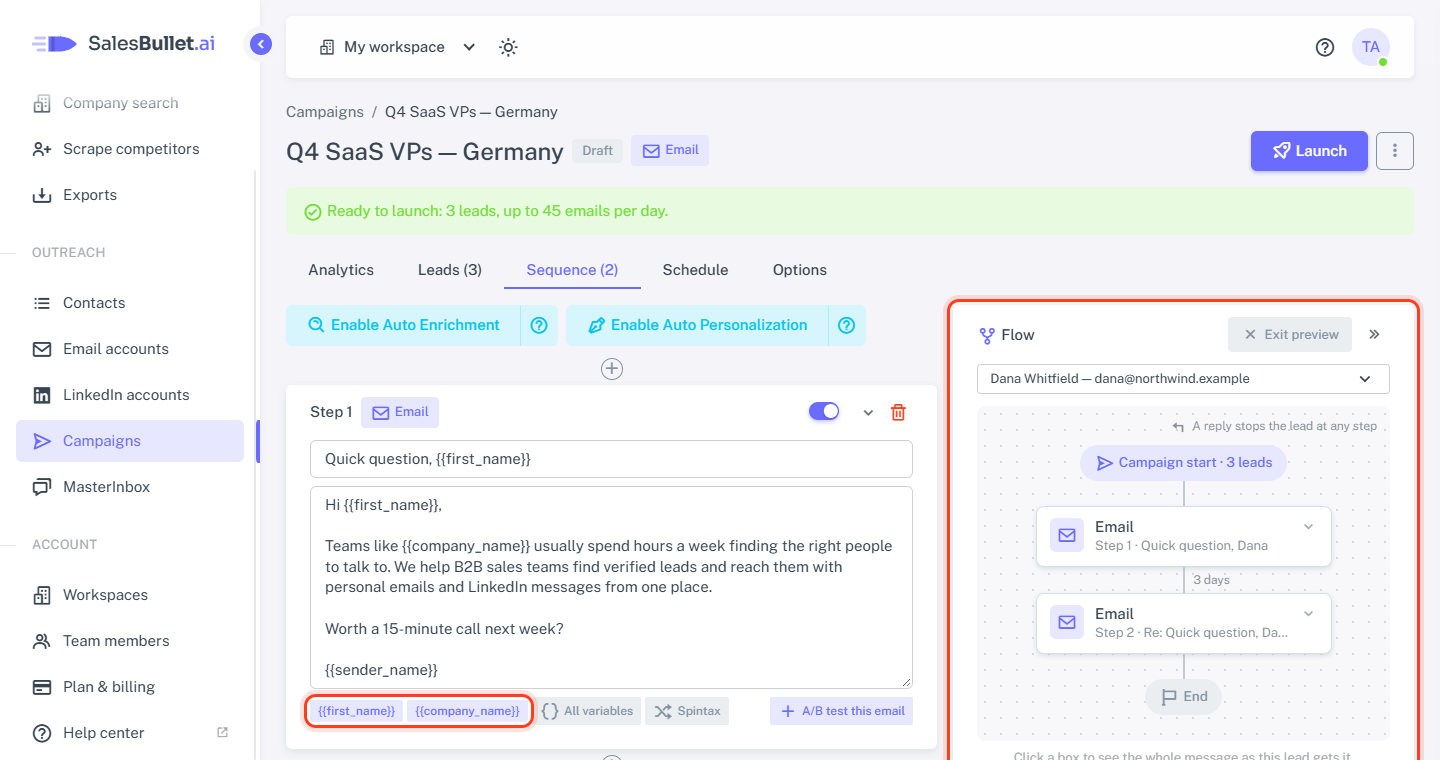
On the Sequence tab, write your first email and its follow-ups. Variables such as {{first_name}} and
{{company_name}} fill in each person's details, and Preview as a lead, above the flow on the right, shows exactly
what one of your leads will get.
5. Choose when and from where — then launch
- Schedule: the days and hours to send, in your time zone.
- Options: the email accounts to send from, and how many emails a day.
Then click Launch. While something is still missing, the campaign says what — for example "Choose the mailboxes to send from (Options)."
What happens next
Emails go out on your schedule, a few minutes apart. When someone replies, the reply lands in the MasterInbox and their sequence stops. The campaign's Analytics tab shows what was sent, the replies and the opportunities.