AI labels
The AI reads each reply and gives it the label that fits — only when it's sure, from the labels you allow.
With AI labels on, the AI reads every reply — email or LinkedIn — and gives the conversation the label that fits. It only labels a reply when it's sure; when no label fits, the conversation keeps the one it has. AI labels are on in every workspace from the start.
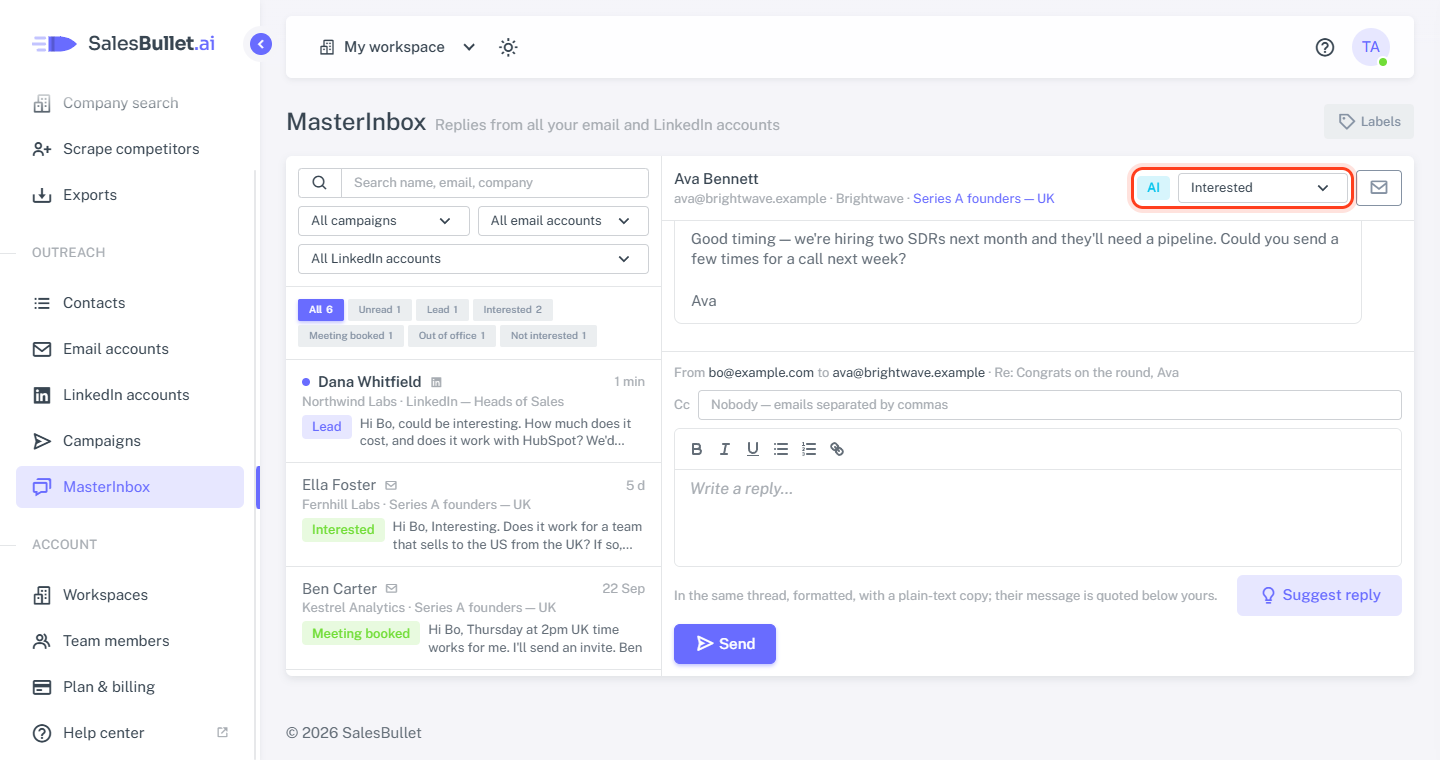
A label the AI chose has AI next to it in the MasterInbox. Pick another label to change it.
What it reads
Their reply — without the quoted history — and your message it answers, in any language. It goes by each label's description, so give your own labels a clear one. When a lead writes again, their latest reply decides.
Which labels it can use
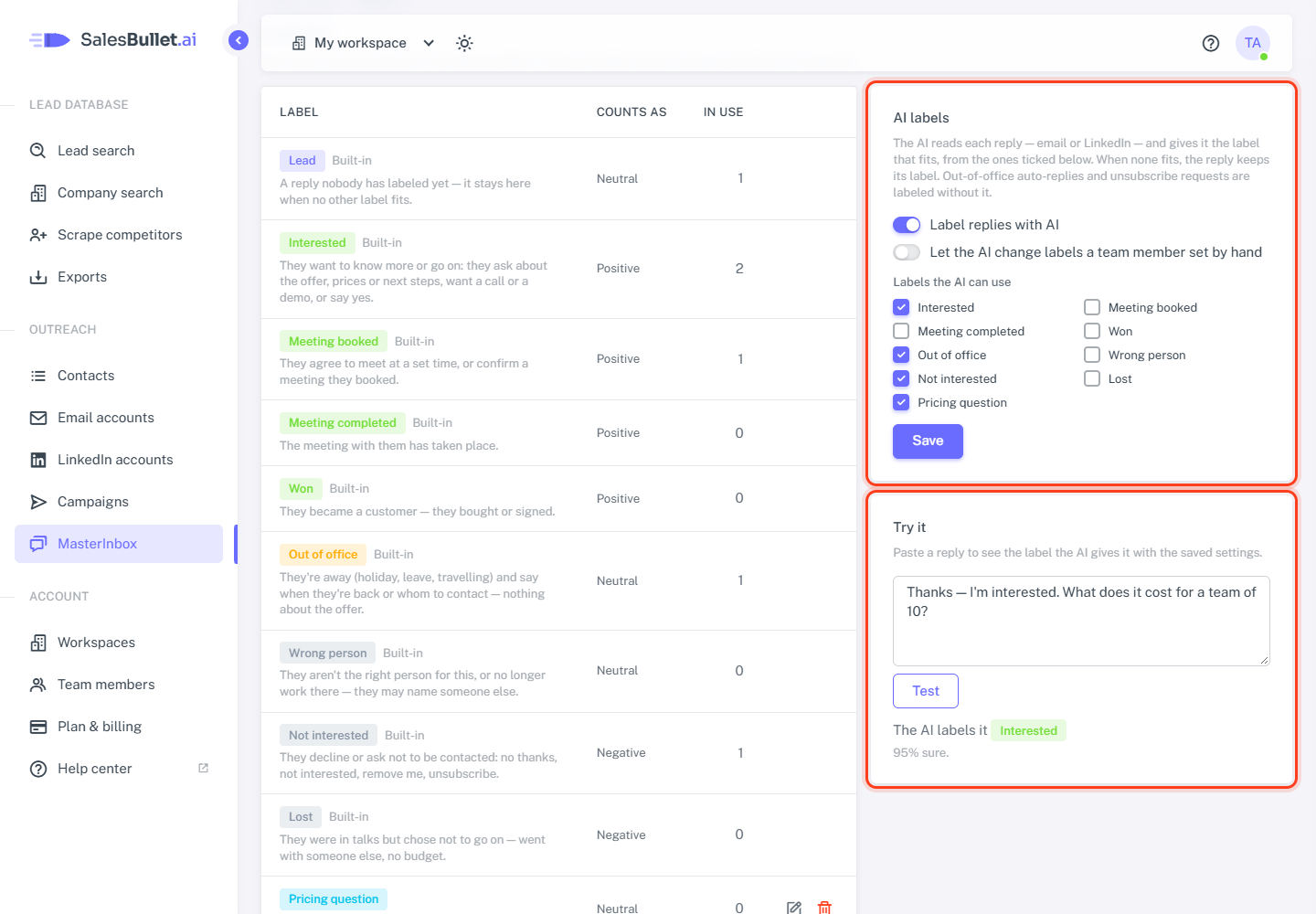
At first Interested, Not interested and Out of office. To change that:
- In the MasterInbox, click Labels.
- Under Labels the AI can use, tick the ones you want — built-in labels and your own.
- Click Save.
Lead isn't on the list: it's where a reply stays when no label fits.
What it leaves alone
- Out-of-office auto-replies and unsubscribe requests — they get Out of office and Not interested without the AI.
- Bounces — they aren't conversations.
- A label someone on your team picked by hand — unless Let the AI change labels a team member set by hand is on. Then their next reply can change it.
Try it
Under Try it on the Labels page, paste a reply and click Test. You see the label the AI gives it with the saved settings, and how sure it is — "95% sure." When it isn't sure enough, it labels nothing: "Not sure enough: Interested at 60% — labels go on from 80%."
Turn it off
Untick Label replies with AI and click Save. Replies then keep the labels they get on arrival and the ones your team gives them. Labels already on conversations stay.
Note
The AI only labels. Whether a lead's sequence stops never depends on it: any reply stops it.