Suggest a reply with AI
One click drafts your answer from the whole conversation — you read it, change it and send it.
When a lead writes back, Suggest reply drafts your answer. The AI reads the whole conversation — your emails and LinkedIn messages and theirs — so it knows what you offered and what they asked.
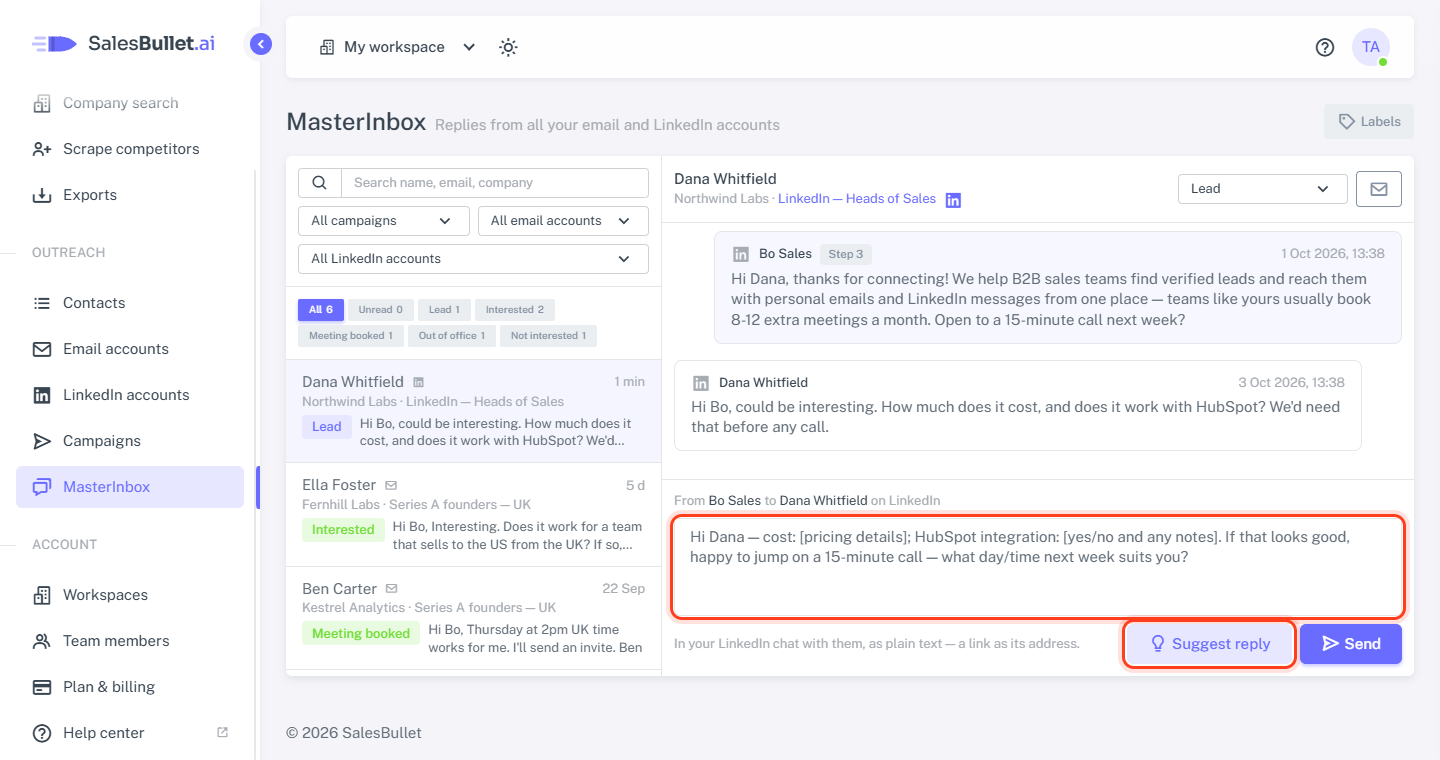
How to use it
- Open the conversation in the MasterInbox.
- If you can reply both ways, choose email or LinkedIn.
- Click Suggest reply — the draft is in the reply box a few seconds later.
- Read it, change what you like, and click Send.
If you already typed something, it asks before replacing your text.
It doesn't make things up
The draft only says what your earlier messages said about you and your offer. Anything else — a price, an integration, a date — it leaves as a gap in square brackets for you to fill in. Dana asked about the price and HubSpot, which the earlier messages didn't mention:
Hi Dana — cost: [pricing details]; HubSpot integration: [yes/no and any notes]. If that looks good, happy to jump on a 15-minute call — what day/time next week suits you?
Important
Nothing is sent by itself: a suggested reply only goes out when you click Send. Fill in the [gaps] first.
What it writes
- In the language of their last message.
- Short: a few sentences for an email, one to three on LinkedIn.
- It answers their questions and suggests one next step — usually the call your messages offered.
- Not interested, or the wrong person: a short, polite close — or a request to introduce you to the right person.
- An out-of-office: a short note that you'll follow up when they're back.