Invite your team
Add people to a workspace — someone with an account joins at once, anyone else gets an email invitation.
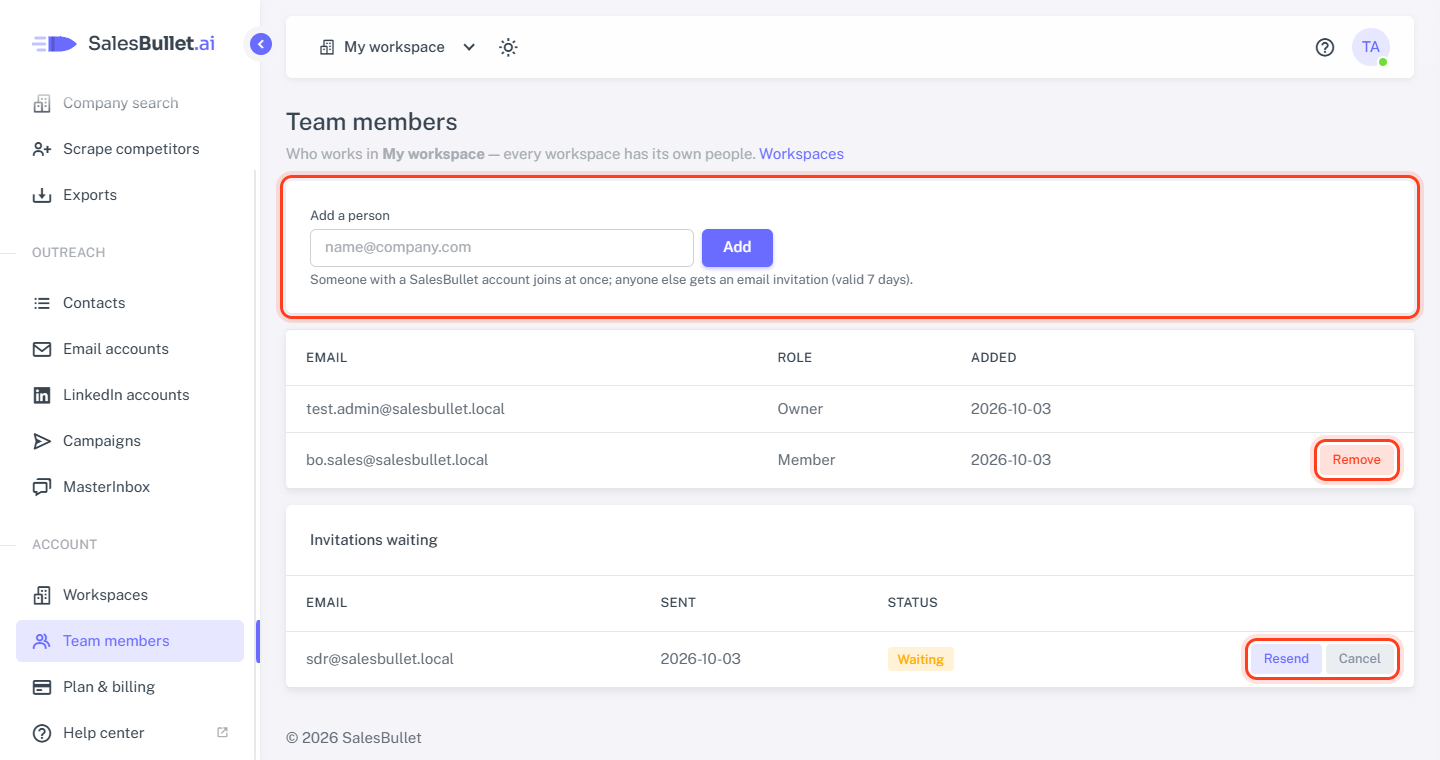
Every workspace has its own people. Team members — in the menu, or in your avatar's menu at the top right — shows who works in the workspace you're in. Only the workspace's owner adds and removes people; everyone else sees the list.
Add a person
- Switch to the workspace in the top bar.
- Open Team members.
- Under Add a person, type their email address and click Add.
Someone who has a SalesBullet account joins at once — the workspace appears in their switcher. Anyone else gets an email invitation, valid for 7 days. Its link opens the sign-up page; once they sign up, they're in your workspace.
Note
People who sign up from an invitation work in your workspace — they don't get a workspace of their own.
Working with someone across several clients? Add them in each client's workspace.
Invitations waiting
Invitations that haven't been accepted are listed under Invitations waiting: Waiting, or Expired after 7 days.
- Resend emails a new link, good for another 7 days. The old link stops working.
- Cancel withdraws the invitation.
Remove someone
Click Remove next to them and confirm. They keep their account and their other workspaces — they just can't open this one any more. What they did stays: the contacts, campaigns and messages belong to the workspace. The owner can't be removed.