Connect a LinkedIn account
Sign in to LinkedIn once — your campaigns then visit, connect and message from that profile.
LinkedIn and Email + LinkedIn campaigns work from your LinkedIn accounts: the profile visits, connection requests, messages, InMails and likes go from a LinkedIn profile you connect. Your LinkedIn accounts belong to your workspace, so everyone on your team can use them in campaigns.
Connect an account
- Open LinkedIn accounts and click Connect LinkedIn account.
- A sign-in page opens. Sign in to LinkedIn there — SalesBullet never sees your password.
- You're back on LinkedIn accounts, and the account shows up in the list. Give it a moment: the list refreshes by itself.
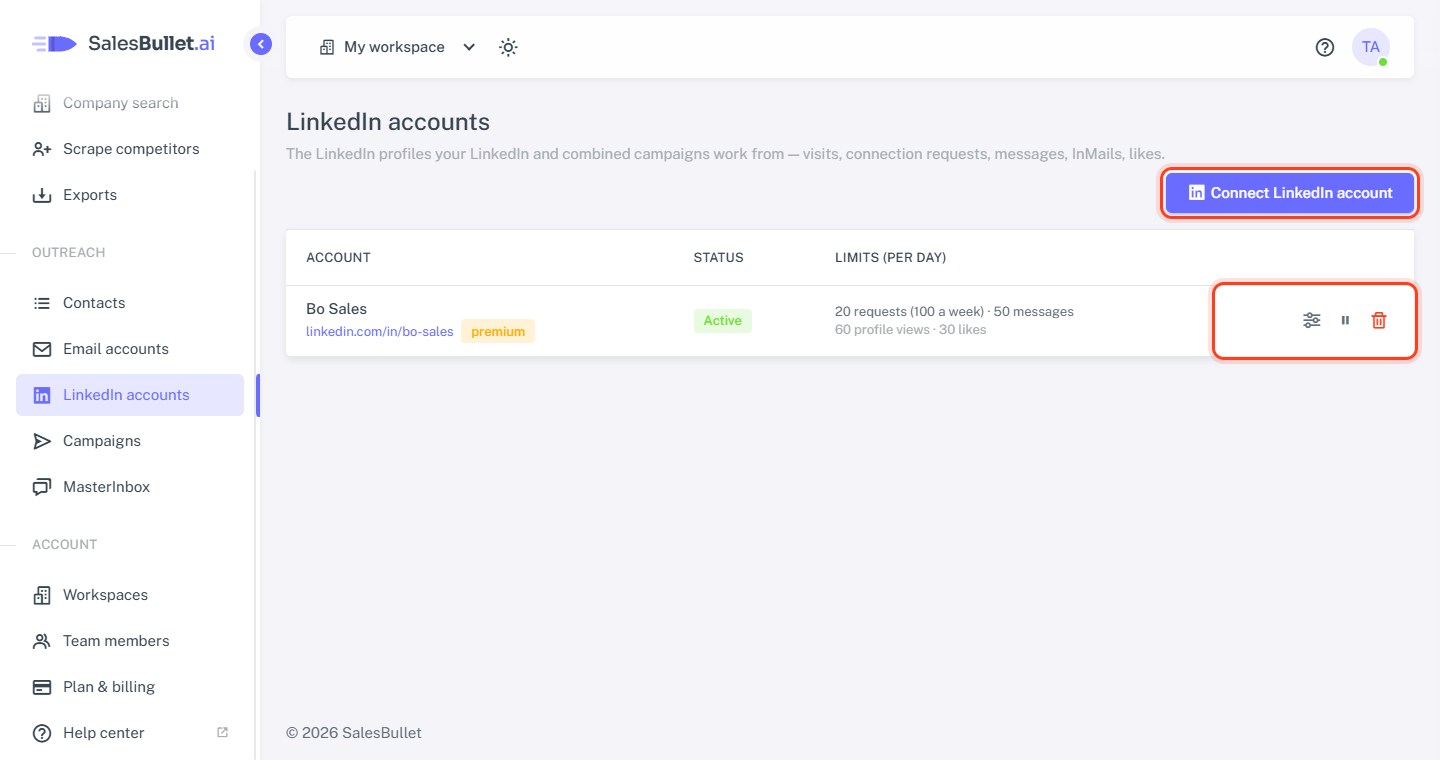
Each account shows its name, its linkedin.com/in/… address and, when it has one, its Premium or Sales Navigator plan —
InMails need one. The name comes from LinkedIn; it's what {{sender_name}} gives in your LinkedIn steps.
To use the account, open a campaign's Options tab, tick it under LinkedIn accounts and click Save options.
Status
- Active — it works its campaigns' leads.
- Paused — you paused it.
- Disconnected — LinkedIn signed it out or stopped it, or your plan moved to Free (plans).
- Error — the connection stopped working.
The reason shows under the status. For Disconnected and Error, click Reconnect and sign in to LinkedIn again: the account is Active again and its campaigns carry on. Until then, the leads it was working wait for it. A campaign with no active LinkedIn account left says so: "None of the chosen LinkedIn accounts is active — check them on LinkedIn accounts."
Limits, pause, remove
The buttons on each account's row:
- Limits (the sliders) — how much the account does a day: LinkedIn daily limits.
- Pause / Resume — a paused account does no campaign steps, and the leads it was working wait for it. You can still answer them from the MasterInbox.
- Remove (the trash can) — takes the account out of SalesBullet, after you confirm.
When you remove an account
Its campaigns stop using it, and the leads it worked continue from the campaigns' other LinkedIn accounts. A campaign that had no other one asks you to "Choose the LinkedIn accounts to use (Options)." Its conversations stay in the MasterInbox. Nothing changes on LinkedIn itself.
Tip
To stop an account for a while, Pause it. A removed account connected again comes back as a new account — you then tick it in each campaign's Options again.