Save a search
Keep a search under a name for your whole team, open it again later, or share it as a link.
Save the searches you run again and again — your whole team sees them. Lead search and Company search each keep their own.
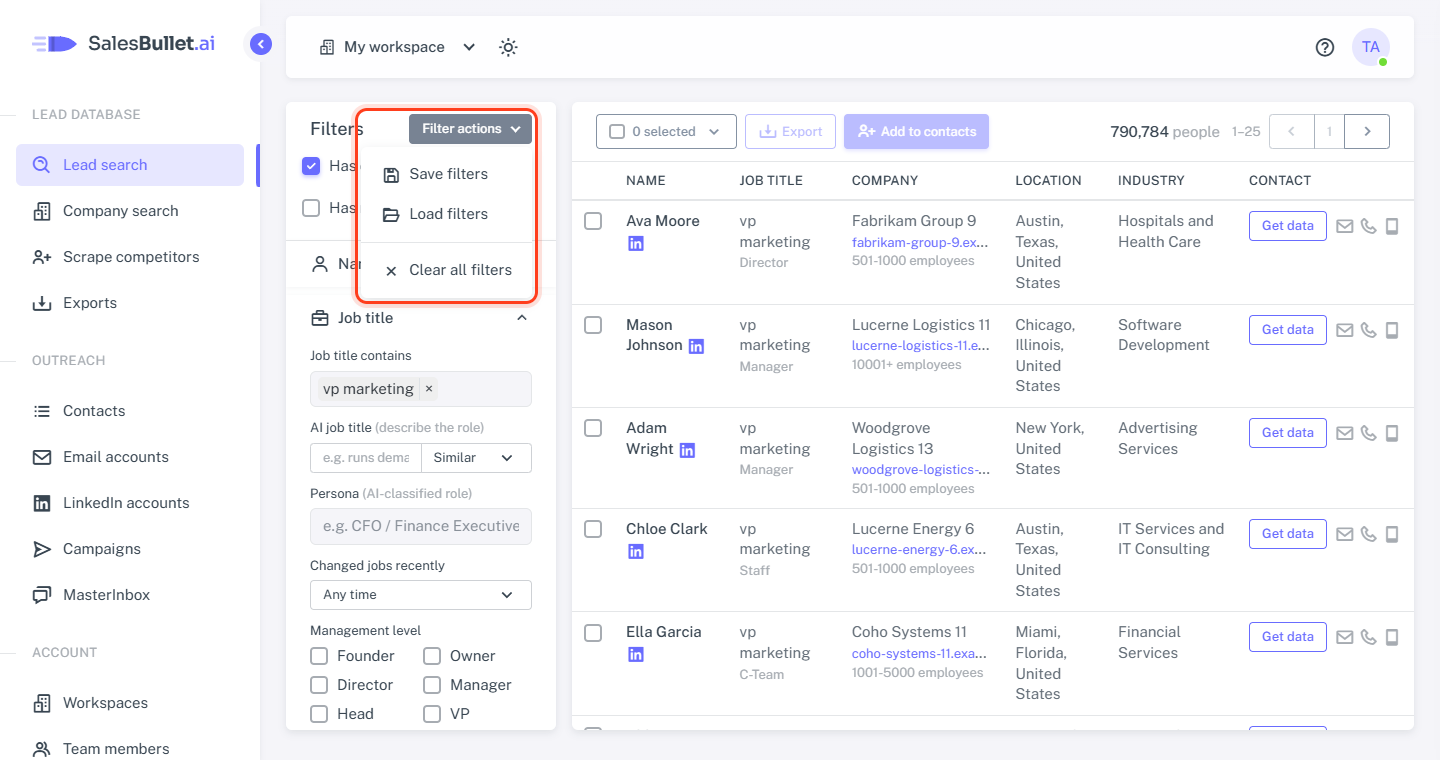
Save a search
- Set your filters.
- Click Filter actions at the top of the filters, then Save filters.
- Give it a name, such as "VP Marketing, SaaS, US", and click Save.
Saving under a name that's already there replaces that search. There must be at least one filter to save — Has email alone isn't enough.
Open a saved search
- Click Filter actions, then Load filters.
- Click the search's name.
It opens with its filters filled in and runs. Its name shows next to Filters, so you know which one you're in.
The list shows who saved each search and when. To delete one, click the bin next to it and confirm with Delete.
Change a saved search
Open it, change the filters, then click Filter actions → Save filters. Its name is already filled in, so Save replaces it. Type a new name to keep both.
Start again
Filter actions → Clear all filters empties every filter. On Lead search, Has email stays on.
Share a search as a link
The address in your browser always holds the search you're looking at — its filters and the page. Copy it and send it to a teammate: the link opens the same search for them.