Write your sequence
Write your first email and its follow-ups, set the days between them and check them in the flow, as one of your leads gets them.
The Sequence tab holds the steps every lead goes through, in order: your first email, then the follow-ups. A new email campaign starts with one empty email to write.
Write an email
- The first email needs a subject.
- A follow-up with an empty subject goes as a reply in the same thread — "Re: …" and the subject before it. Give it a subject of its own to start a new thread.
- Emails are plain text: no formatting, and links work as you paste them.
- The buttons under the text put in variables, such as
{{first_name}}, and spintax.
Add steps
Add step, under the last step, adds a step at the end; the + above a step puts it there instead. Both ask what the step is: Email — or, below the line, a step that contacts no one but prepares the lead for the message after it: Enrichment, Personalization or a Webhook. From Add step, those go in right before the message they're for.
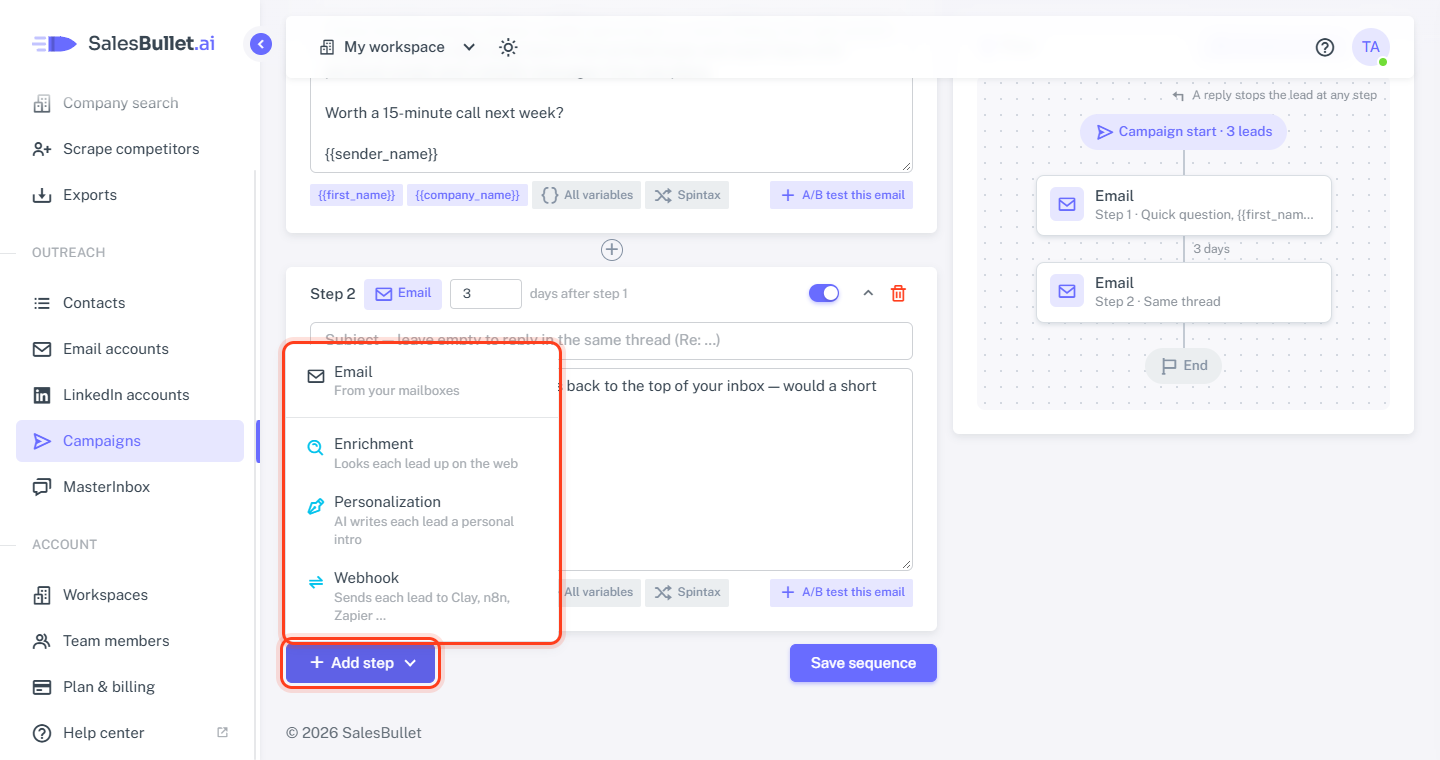
A campaign has up to 20 steps. LinkedIn campaigns have LinkedIn steps too — see LinkedIn steps.
Move, switch off or remove a step
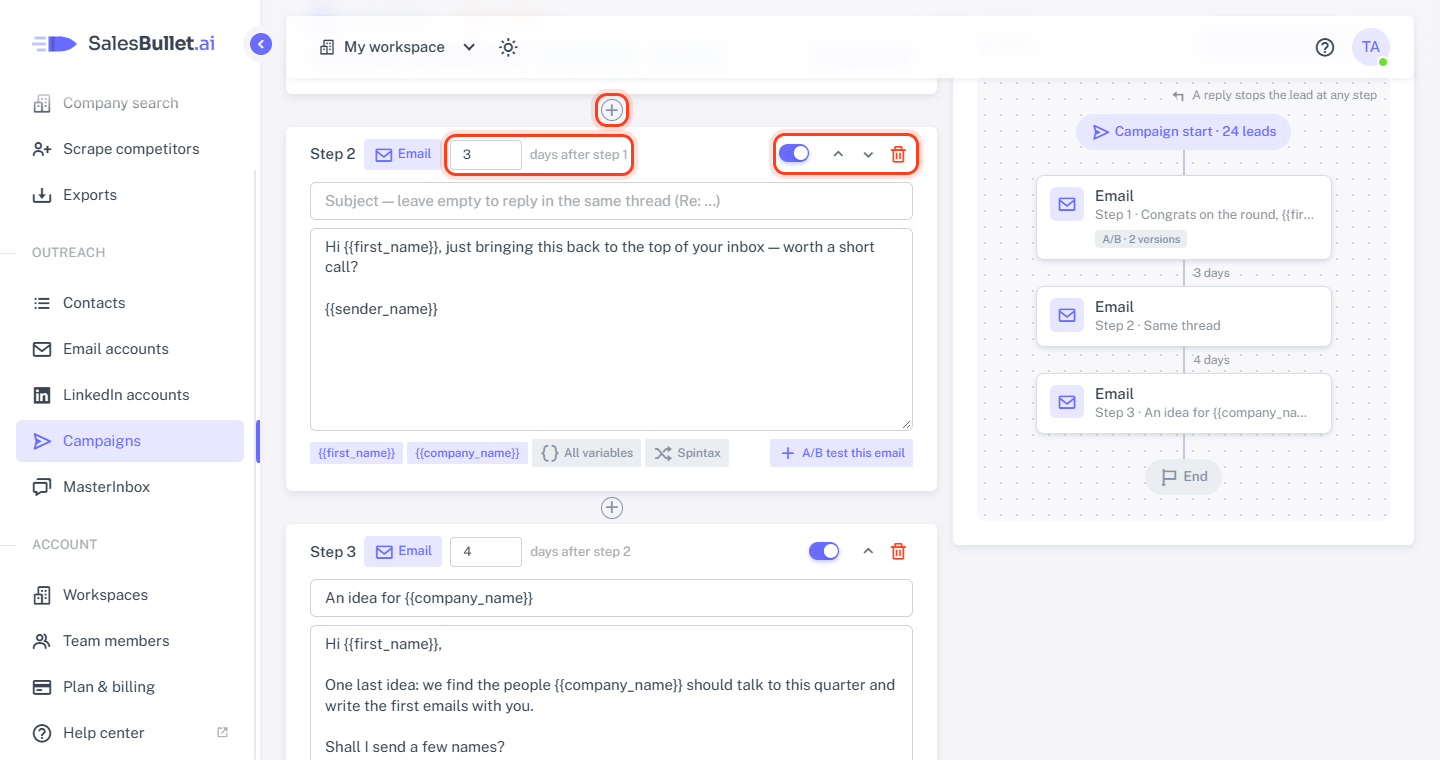
On the right of each step:
- The switch turns the step off without removing it: every lead passes it, until you switch it on again.
- The arrows (Move up, Move down) move it. A step keeps its type — to change it, add a new step and remove the old one.
- The bin (Remove this step) removes it, after asking.
Waits
Each message after the first waits a number of days: 3 days after step 1. The days count from when the step before went out to that lead; the email then goes in the next sending window of your schedule. An email waits 1 to 90 days. When a step is switched off, the next one waits from the last step the lead got.
The first email has no wait: new leads get it as your daily limits and pace allow.
See the flow
On the right, Flow draws the sequence as boxes, top to bottom, with the days on the lines between them. LinkedIn steps carry LinkedIn's logo. Enrichment, Personalization and Webhook steps are boxes of their own, right before the message they prepare. In LinkedIn and Email + LinkedIn campaigns, the steps that run only if the lead is connected — or isn't — stand side by side. The flow follows as you edit; click a box to go to its step.
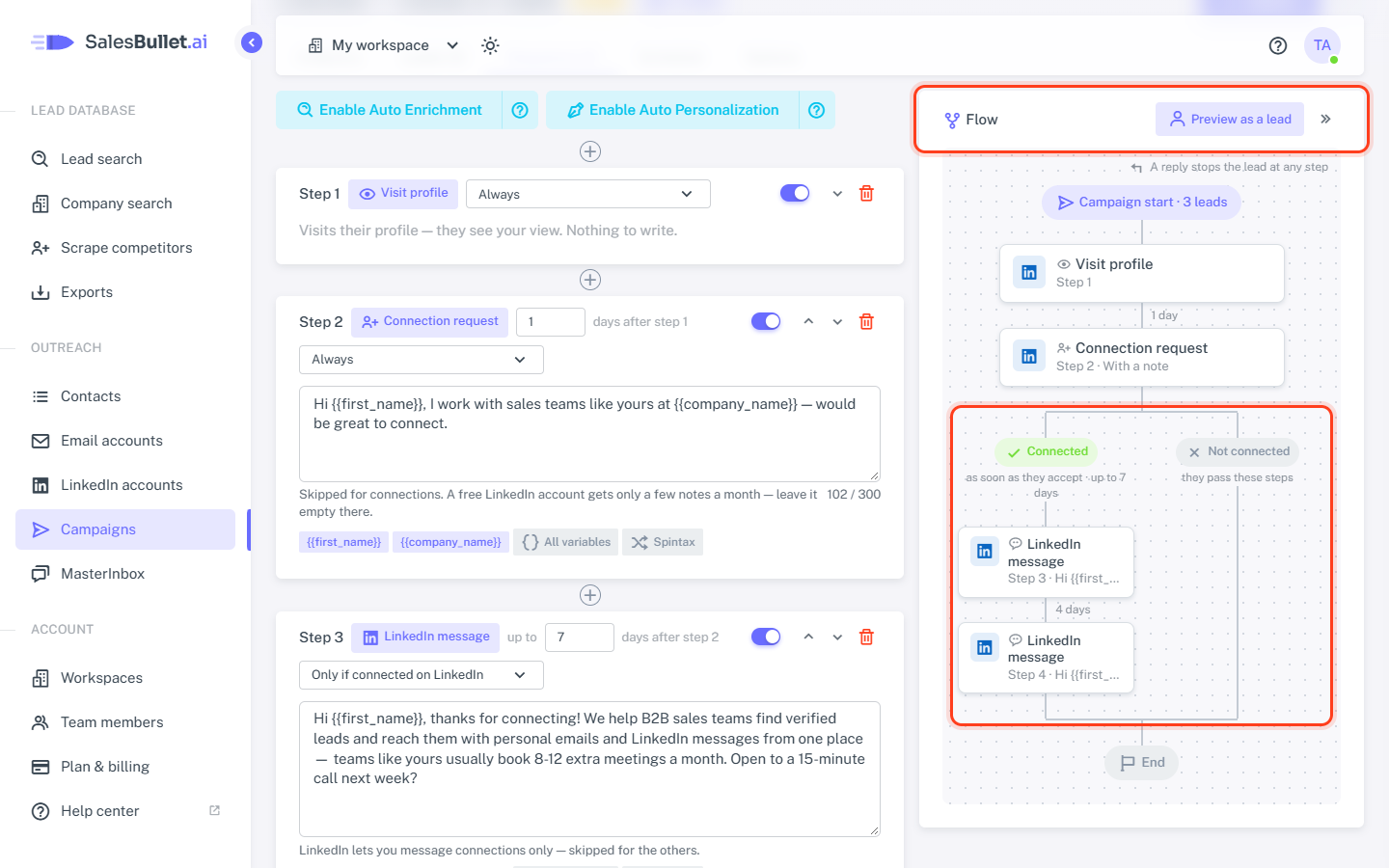
Preview as a lead
Preview as a lead, above the flow, shows each step as one of your leads gets it — the variables filled in, the spintax option and the A/B version picked. Choose the lead at its top. Each box then says what that lead gets — the subject, the start of a message — and flags a value they don't have. Click a box to see the whole message; Edit step takes you to it. The preview follows as you edit, a moment after you stop typing. Exit preview (or Esc) brings the plain flow back. Until the campaign has leads, it shows a sample contact.
Need more room? » slides the panel away, and the steps take the whole width. Show flow, above the steps, brings it back. This browser remembers your choice.
Save
Click Save sequence. Nothing is saved before that — if you leave the tab first, your changes are lost.
Note
You can change the sequence while the campaign runs. Leads keep their place: they go on after the last step they had, and nobody gets a step twice. A step you put before a lead's place, that lead doesn't get.